Directory Structure
How to organize your data for the 3DGS pipeline.
Required Structure
Each capture date must follow this exact layout:
data/
└── 20260119/                    ← date folder (YYYYMMDD format)
    ├── video.mp4                ← raw input video
    ├── frames/                  ← extracted JPEG frames (Stage 1 output)
    │   ├── frame_0001.jpg
    │   ├── frame_0002.jpg
    │   └── ... (~329 files)
    ├── database.db              ← COLMAP database (auto-created)
    ├── sparse/                  ← COLMAP output (Stage 2 output)
    │   └── 0/
    │       ├── cameras.bin
    │       ├── images.bin
    │       └── points3D.bin
    └── output/                  ← 3DGS model (Stage 3 output)
        ├── cameras.json
        ├── cfg_args
        ├── input.ply
        └── point_cloud/
            └── iteration_30000/
                └── point_cloud.ply
📸 Screenshot to capture
Screenshot your actual data directory open in a file browser — show the date folder containing all subfolders after completing the full pipeline.
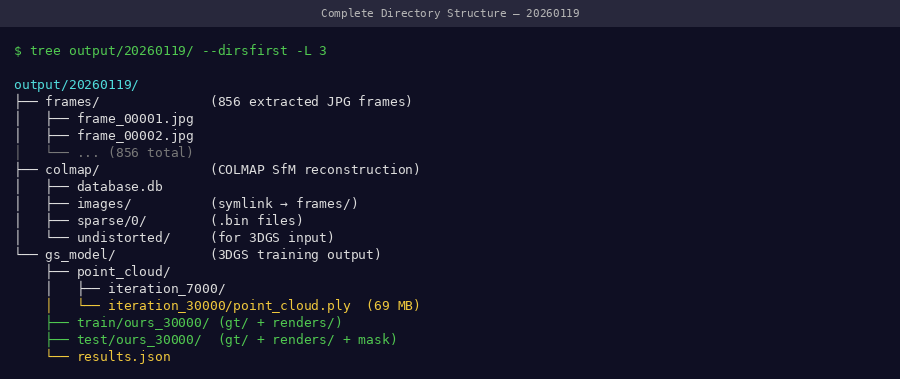 A complete date folder after running all 5 pipeline stages — all subfolders populated
Full Multi-Date Dataset
For a time-series study with multiple dates:
data/
├── 20260101/
│   ├── video.mp4
│   ├── frames/
│   ├── sparse/
│   └── output/
├── 20260108/
│   ├── video.mp4
│   ├── frames/
│   ├── sparse/
│   └── output/
├── 20260115/
│   └── ...
└── 20260119/
    └── ...

results/
├── traits_20260101.csv
├── traits_20260108.csv
├── traits_20260115.csv
├── traits_20260119.csv
└── all_traits.csv              ← combined time-series
📸 Screenshot to capture
Screenshot the top-level data/ directory showing all 22 date folders.
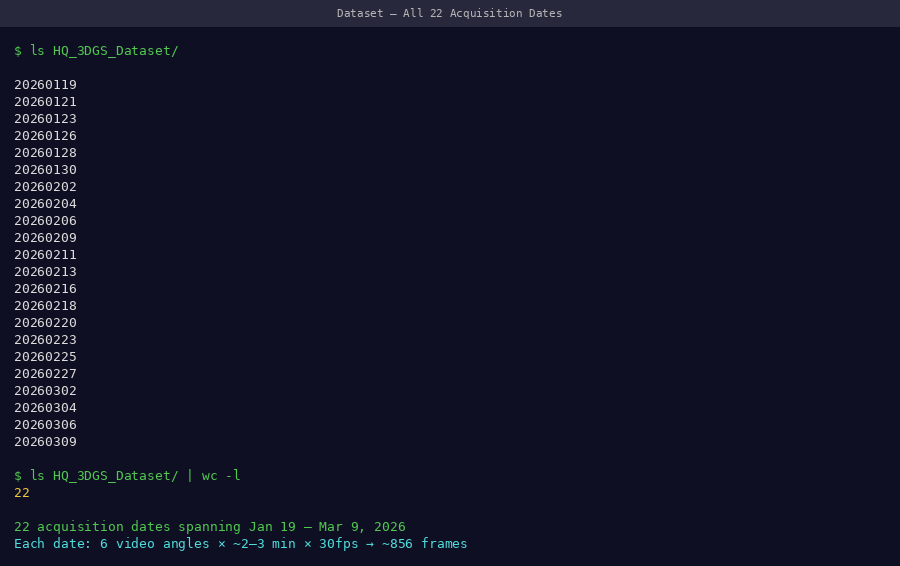 Top-level data directory with all 22 capture dates — each folder is a self-contained reconstruction
Setting Up the Structure
Create the folder structure before running any pipeline stage:
# Create date directory
DATE="20260119"
mkdir -p data/$DATE/frames
mkdir -p data/$DATE/sparse

# Copy or move your video
cp /path/to/recording.mp4 data/$DATE/video.mp4

# Verify
ls data/$DATE/
# frames/  video.mp4
📸 Screenshot to capture
Screenshot the terminal showing ls data/$DATE/ after setup — confirms video.mp4 and empty frames/ folder are ready.
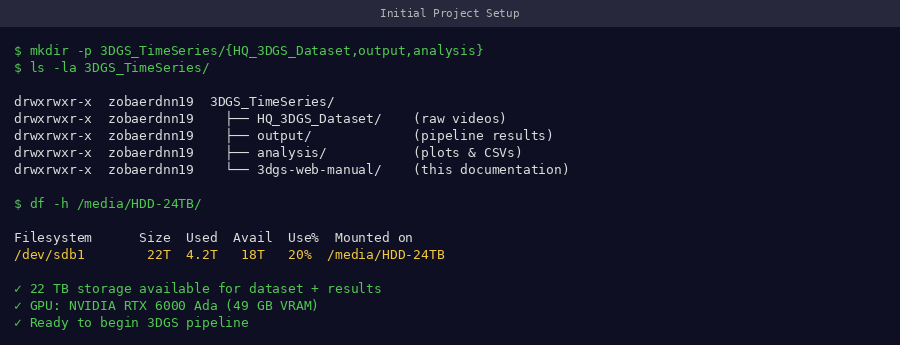 Initial directory state before pipeline — just video.mp4 and empty frames/ folder needed to start
Disk Space by Stage
| After Stage | New Files | Cumulative Size |
|---|---|---|
| Setup | video.mp4 |
~2 GB |
| Stage 1 (frames) | frames/*.jpg (~329 files) |
~3.5 GB |
| Stage 2 (COLMAP) | database.db + sparse/ |
~3.7 GB |
| Stage 3 (3DGS) | output/point_cloud/ |
~4.0 GB |
| Stage 4 (renders) | output/train/ + output/test/ |
~6.5 GB |
Per date: ~6.5 GB · 22 dates: ~143 GB · Recommended storage: 500 GB+
Naming Convention Rules
| Item | Format | Example | Why |
|---|---|---|---|
| Date folders | YYYYMMDD |
20260119 |
Sorts chronologically |
| Video file | video.mp4 |
video.mp4 |
Scripts expect this name |
| Frames | frame_%04d.jpg |
frame_0001.jpg |
COLMAP reads in this order |
| Results | traits_YYYYMMDD.csv |
traits_20260119.csv |
Matches date folders |
Do not use spaces or special characters in paths
COLMAP and 3DGS scripts may fail with paths containing spaces. Use underscores or hyphens only.