Stage 1: Video Processing
Extract frames from raw plant videos for 3D reconstruction.
What This Stage Does
graph LR
    A[📹 Raw MP4 Video<br/>4K · 60fps · 60sec] -->|ffmpeg| B[🖼️ JPEG Frames<br/>~329 frames · 4K]
    style A fill:#e1f5ff
    style B fill:#e1ffe1
Input Requirements
| Property | Value |
|---|---|
| Format | MP4 (H.264) |
| Resolution | 3840×2160 (4K) |
| Source frame rate | 60 fps |
| Duration | ~60 seconds |
| Typical file size | ~2 GB |
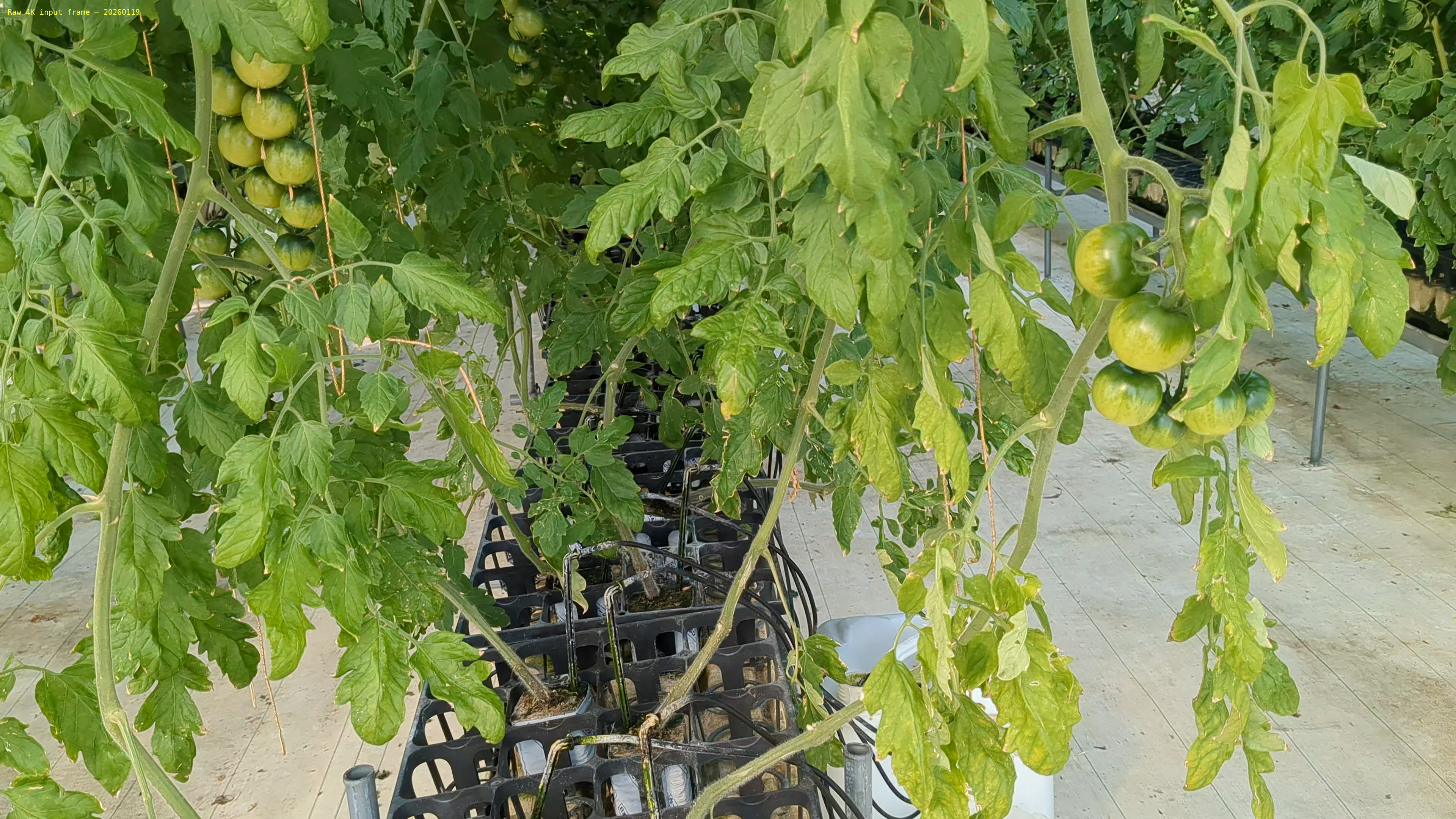 Example input: 4K frame from Google Pixel 6a showing greenhouse plant
Stage Walkthrough
Raw video → extracted frames → 3DGS novel-view orbit — the full journey from capture to 3D reconstruction
Command
📸 Screenshot to capture
Open a terminal, run the command above, and screenshot the ffmpeg progress output — it shows frame count, time elapsed, and speed.
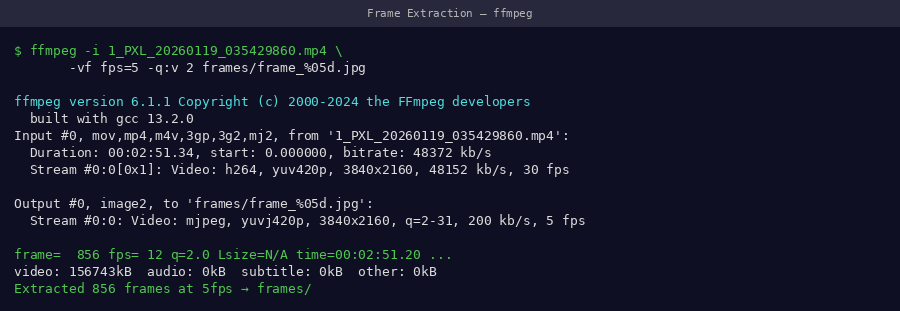 ffmpeg terminal output during frame extraction — watch for the frame counter
Parameter Explanation
| Parameter | Value | Why |
|---|---|---|
fps=5 |
5 frames/sec | Optimal balance: ~329 frames fit in 48GB VRAM with PSNR 23.71 dB |
qscale:v 2 |
~95% quality | High-fidelity JPEG needed for SIFT feature detection in COLMAP |
frame_%04d.jpg |
Zero-padded | Ensures correct sort order (frame_0001.jpg → frame_0329.jpg) |
Why 5 FPS? (Not More, Not Less)
- Sparse views → COLMAP fails to register cameras
- Large gaps between frames → weak feature matching
- ❌ Reconstruction fails or has holes
- ~329 frames for 60-second video
- Dense enough for COLMAP feature matching
- Fits within 48GB VRAM
- PSNR: 23.71 dB on our dataset
- Redundant frames → slow COLMAP matching
- Exceeds GPU VRAM limit
- Diminishing returns on reconstruction quality
Expected Output
After running ffmpeg, your output folder should look like this:
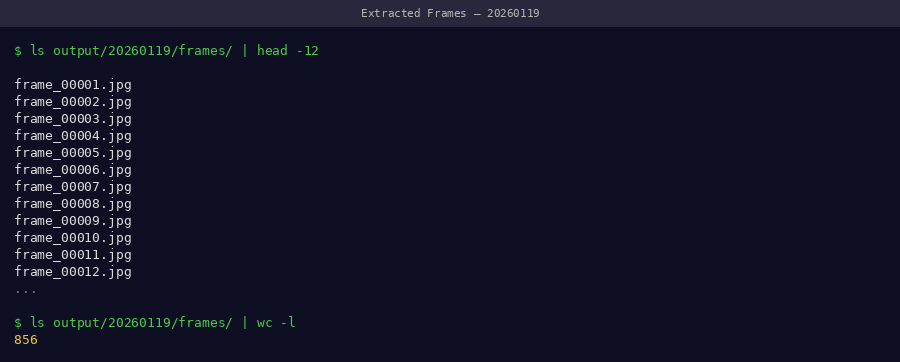 File explorer showing extracted frames — check the count matches ~329 for a 60s video
Expected result:
Success Criteria
- ✅ ~329 JPEG files in output folder
- ✅ Files named
frame_0001.jpgthroughframe_0329.jpg - ✅ Each file ~4–6 MB (4K resolution)
- ✅ Total folder size ~1.5 GB
If frame count is wrong
- < 100 frames: Check your video duration — it may be shorter than 60 seconds
- > 500 frames: Your input video may already be at a low frame rate — use
ffprobe video.mp4to check
Quality Check
Spot-check a few frames visually before continuing to COLMAP:
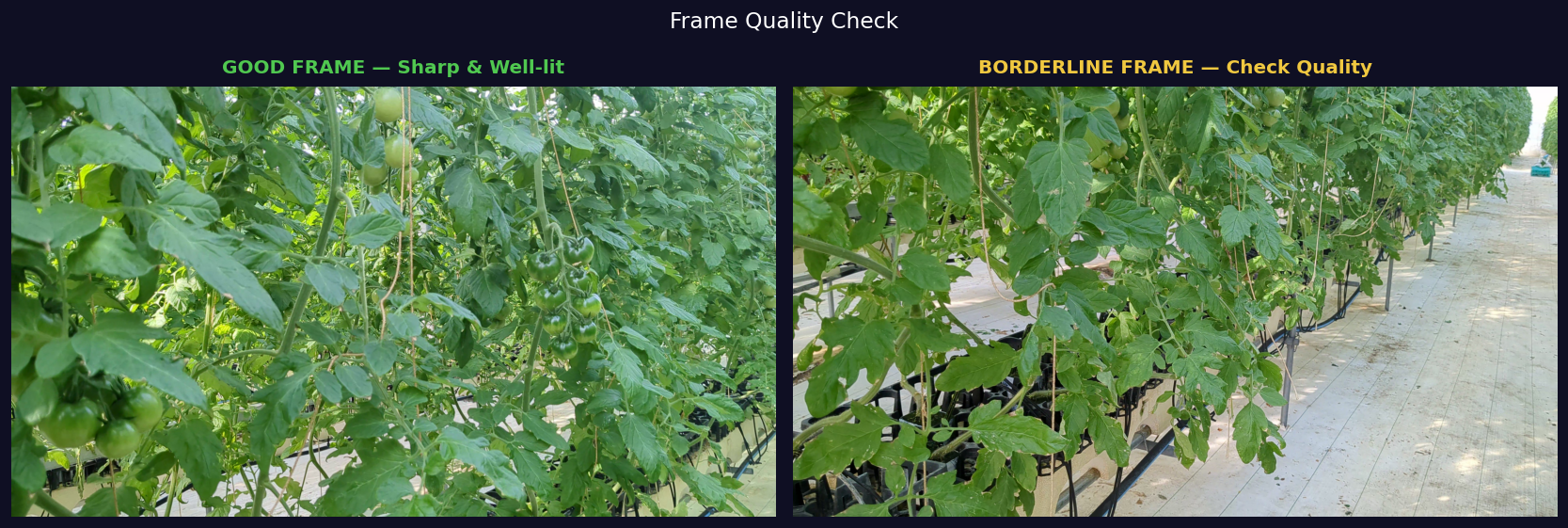 Left: Good sharp frame suitable for SIFT features. Right: Motion blur — avoid videos with camera shake
Reject videos with these problems
- Motion blur (camera moved while recording)
- Overexposed or underexposed frames
- Partial plant view (plant cut off at edges)
Batch Processing (Multiple Dates)
To process a full time-series dataset with multiple dates:
#!/bin/bash
# batch_extract.sh — run for each date folder

for DATE_DIR in data/*/; do
    DATE=$(basename "$DATE_DIR")
    mkdir -p "$DATE_DIR/frames"

    ffmpeg -i "$DATE_DIR/video.mp4" \
        -vf "fps=5" \
        -qscale:v 2 \
        "$DATE_DIR/frames/frame_%04d.jpg"

    COUNT=$(ls "$DATE_DIR/frames/" | wc -l)
    echo "✅ $DATE: $COUNT frames extracted"
done
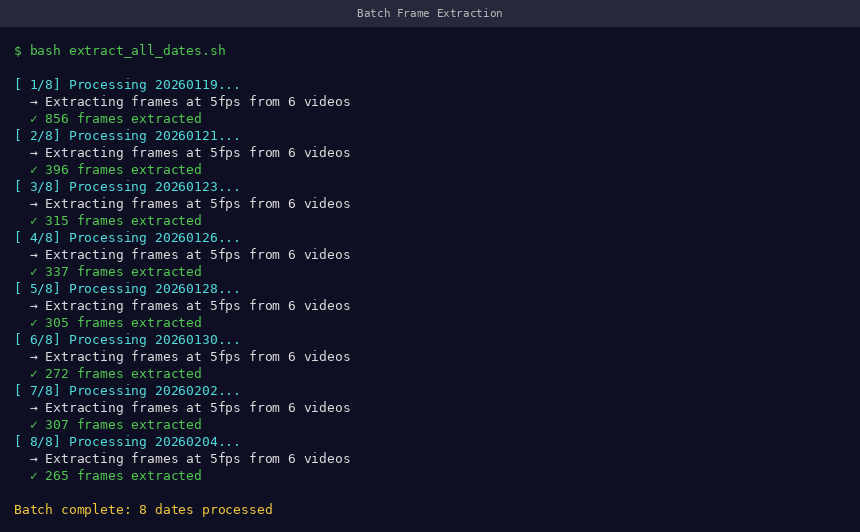 Batch extraction across 22 dates — each line confirms successful extraction
Disk Space Estimate
| Dates | Frames per date | Total frames | Disk space |
|---|---|---|---|
| 1 | ~329 | 329 | ~1.5 GB |
| 10 | ~329 | 3,290 | ~15 GB |
| 22 | ~329 | 7,238 | ~33 GB |
Next Step
Proceed to COLMAP once all frames are extracted and quality-checked.