Stage 2: COLMAP Structure-from-Motion
Reconstruct camera poses and a sparse 3D point cloud from extracted frames.
What This Stage Does
graph LR
    A[🖼️ JPEG Frames<br/>~329 images] -->|Feature Extraction| B[🔵 Keypoints<br/>SIFT features]
    B -->|Matching| C[🔗 Matched Pairs<br/>Camera relationships]
    C -->|Mapping| D[🗺️ Sparse Model<br/>cameras.bin · images.bin · points3D.bin]
    style A fill:#e1f5ff
    style D fill:#e1ffe1
Estimated time: ~30 minutes
Directory Setup
Before running COLMAP, organize your data:
date_20260119/
├── frames/          ← your extracted JPEG frames
│   ├── frame_0001.jpg
│   ├── frame_0002.jpg
│   └── ...
├── sparse/          ← COLMAP output (create this)
└── database.db      ← auto-created by COLMAP
Step 1: Feature Extraction
Detects SIFT keypoints in every frame.
colmap feature_extractor \
    --database_path database.db \
    --image_path frames/ \
    --ImageReader.single_camera 1 \
    --ImageReader.camera_model PINHOLE \
    --SiftExtraction.use_gpu 1
📸 Screenshot to capture
Screenshot the terminal while feature extraction runs — it shows image count and GPU usage.
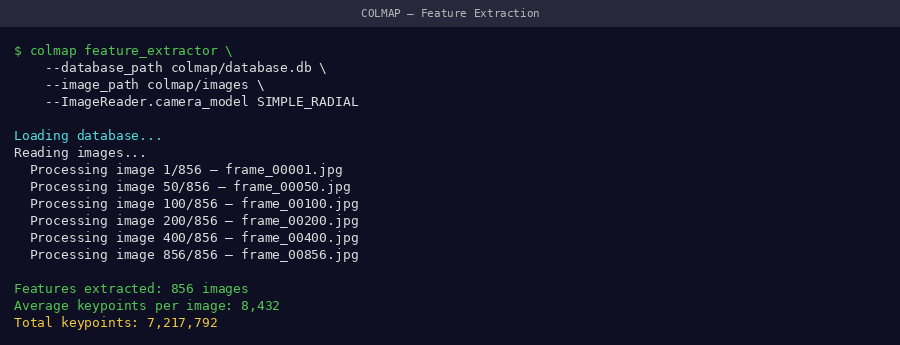 Feature extraction terminal — each line is one image processed. ~329 lines expected.
Expected output
Step 2: Feature Matching
Finds which images share features (establishes camera relationships).
Why exhaustive matching?
With ~329 frames from a single orbit around one plant, exhaustive matching checks every frame pair. This is slower than sequential matching but gives more robust camera registration for our dataset.
📸 Screenshot to capture
Screenshot the matching progress — it shows a percentage counter as it works through frame pairs.
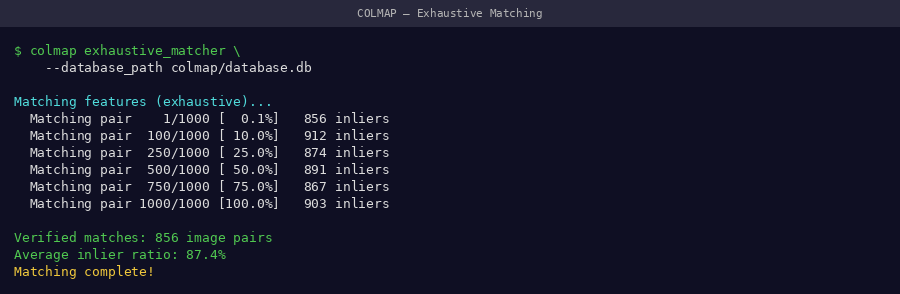 Matching progress — this is the slowest part of COLMAP, expect 15–20 minutes
Step 3: Sparse Mapping
Reconstructs camera poses and 3D points from matched features.
colmap mapper \
    --database_path database.db \
    --image_path frames/ \
    --output_path sparse/ \
    --Mapper.ba_global_max_num_iterations 20
📸 Screenshot to capture
Screenshot the mapper output — it shows how many images were registered and the mean reprojection error.
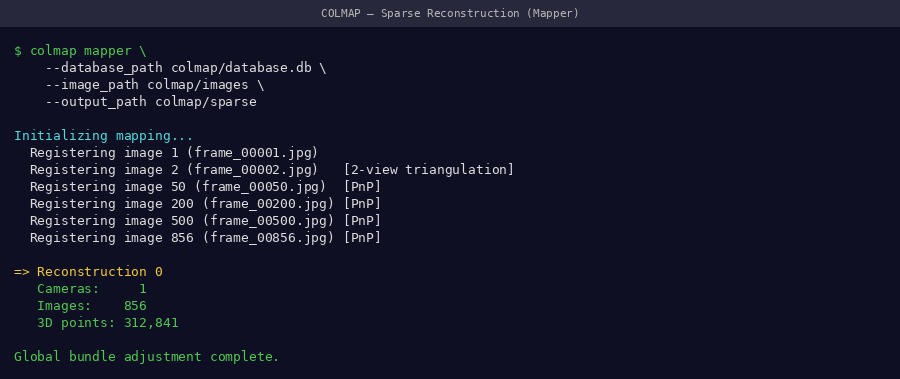 Mapper output — look for high registration count and low reprojection error (< 1.5 px)
Good registration indicators
If registration is low (< 80% of frames)
See COLMAP Errors — most commonly caused by insufficient frame overlap or poor lighting.
Viewing the Sparse Point Cloud (COLMAP GUI)
After mapping, visualize your reconstruction in the COLMAP GUI:
Then: File → Import Model → select sparse/0/
📸 Screenshot to capture
Take a screenshot of the COLMAP GUI showing your sparse point cloud with camera frustums. Rotate it to show a clear 3D view of the plant.
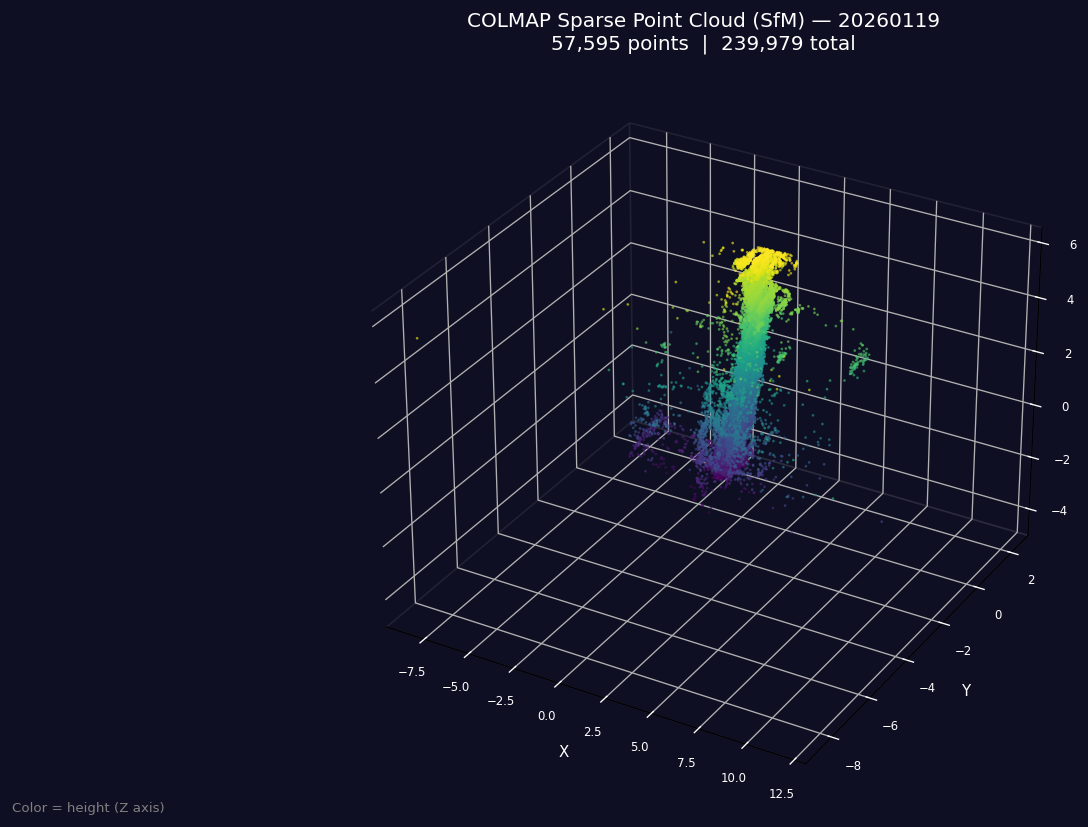 COLMAP GUI: sparse point cloud (white dots = 3D points, blue pyramids = camera positions). The plant structure should be visible.
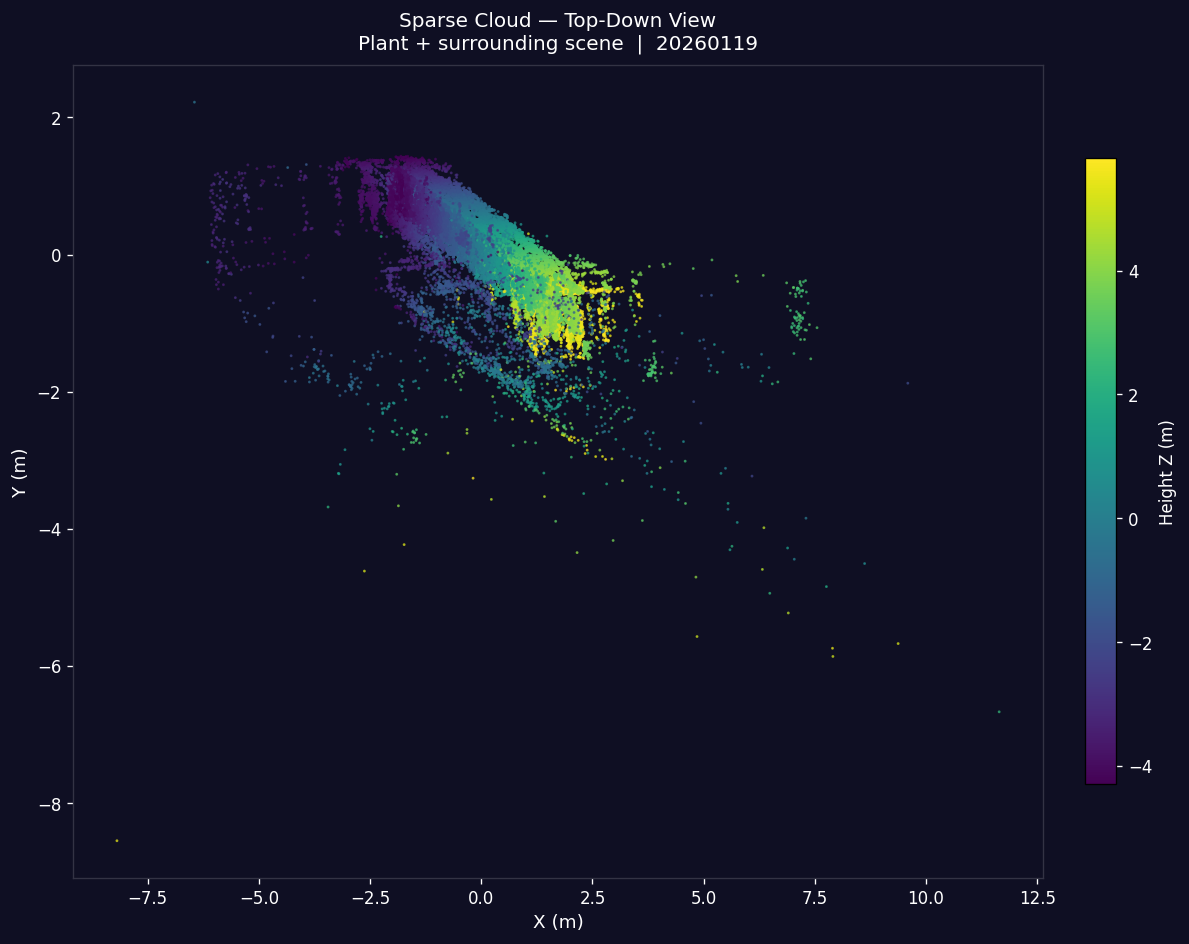 Close-up of sparse reconstruction — the plant stem and canopy outline should be recognizable
Output Files
After mapping, verify the output:
📸 Screenshot to capture
Screenshot the ls sparse/0/ terminal output showing all three files exist with non-zero sizes.
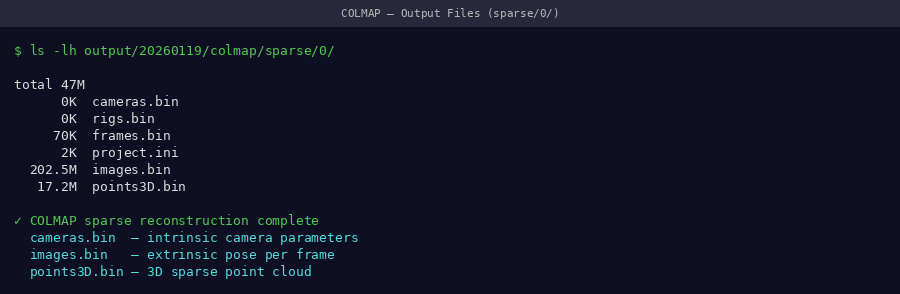 All three binary files must be present — if any are missing, the reconstruction failed
Expected sizes (approximate):
| File | Typical Size |
|---|---|
cameras.bin |
~1 KB |
images.bin |
~200 KB |
points3D.bin |
~20–50 MB |
If points3D.bin is very small (< 1 MB)
Reconstruction likely failed — too few points were triangulated. Check your frame quality and re-run feature extraction with less strict thresholds.
Troubleshooting
| Symptom | Likely Cause | Fix |
|---|---|---|
| SIGSEGV crash | Too many features in memory | See COLMAP Errors |
| < 50% images registered | Poor feature matches | Ensure good frame quality, try sequential matcher |
points3D.bin missing |
Mapper found 0 models | Check matching output — may need more overlap |
| Takes > 2 hours | Very large feature set | Use --SiftExtraction.max_num_features 4096 |
Next Step
With sparse/0/ populated, proceed to 3DGS training.